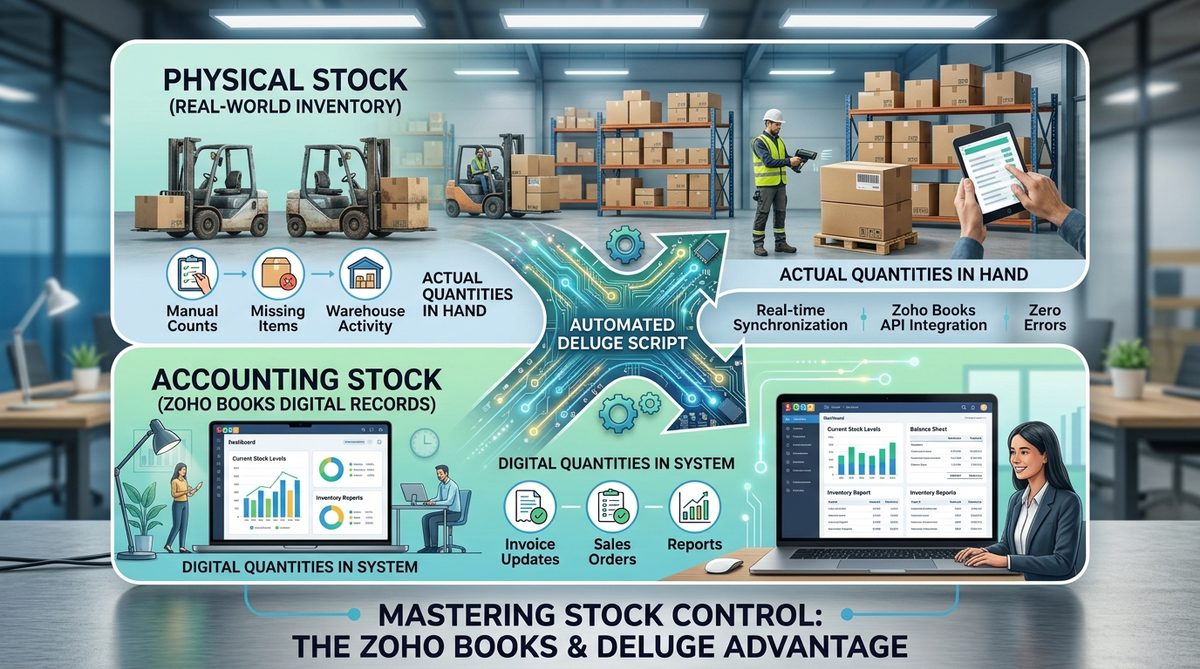
When creating sales invoices in Zoho Books, businesses often need a quick way to know whether the items being sold actually have stock behind them. Zoho Books doesn't flag this out of the box — but it can be customized using Workflows and a Deluge custom function to automatically check stock availability and record a stock status directly on the invoice.
Below is a real, working implementation: comparing physical stock and accounting/available stock for every line item on a sales invoice, and writing the result back to a custom field — without blocking the user from saving the invoice.
What This Customization Does
The objective is to automatically check every inventory item when a sales invoice is created or edited. The system will:
- Read all items in the sales invoice
- Check the physical stock of each item
- Check the accounting/available stock of each item
- Compare both stock values
- Update a custom field called
Stock Status
If both physical stock and accounting stock are zero for any item, the invoice is marked Some Items Are Below Stock Level. Otherwise, it's marked Stock OK. The invoice still saves normally either way — this customization only records the status, it doesn't block anything.
Step 1: Create the Stock Status Custom Field
Go to Settings → Sales → Invoices → Custom Fields and create a custom field named Stock Status with two options:
- Stock OK
- Some Items Are Below Stock Level
In this example, the custom field ID is 1114718000000518199 — you'll use your own field's ID once created.
Step 2: Create an Invoice Workflow
Go to Settings → Automation → Workflow Rules and create a workflow for Invoices, set to execute when an invoice is Created or Edited. Under workflow actions, select Custom Function. The function will receive the invoice information and check the stock of every invoice item.
Step 3: Create the Deluge Custom Function
The function first pulls the invoice ID from the workflow argument:
invoice_id = invoice.get("invoice_id");
It then retrieves the complete invoice from Zoho Books via the API:
invoice_response = invokeurl
[
    url :"https://www.zohoapis.com/books/v3/invoices/" + invoice_id + "?organization_id=" + organization_id
    type :GET
    connection:"zoho_books_connection_1"
];
Step 4: Check the Stock of Every Item
The function reads the invoice line items and checks the stock values:
physical_stock = ifnull(line_item.get("stock_on_hand"),0).toDecimal();

accounting_stock = ifnull(line_item.get("available_stock"),0).toDecimal();
In this implementation, stock_on_hand is treated as the physical stock, and available_stock as the accounting/available stock. For example:
| Item | Physical Stock | Accounting Stock |
|---|
| Product A | 361 | 361 |
| Product B | 1,194 | 1,194 |
| Product C | 254 | 254 |
| Product D | 2,144 | 2,144 |
Since every item has stock available, the invoice status resolves to Stock OK.
Step 5: Identify Zero Stock Items
The main condition in the function:
if(physical_stock <= 0 && accounting_stock <= 0)
{
    stock_status = "Some Items Are Below Stock Level";
    break;
}
The && operator means both conditions must be true before the invoice is flagged. So the logic plays out like this:
| Physical Stock | Accounting Stock | Status |
|---|
| 100 | 100 | Stock OK |
| 100 | 0 | Stock OK |
| 0 | 100 | Stock OK |
| 0 | 0 | Some Items Are Below Stock Level |
If instead you want the invoice flagged when either value is zero, swap the condition to use || instead of &&:
if(physical_stock <= 0 || accounting_stock <= 0)
Step 6: Update the Stock Status Field
Once the stock check is complete, the function updates the invoice custom field and pushes the change back through the Zoho Books API:
stock_status_field_id = "1114718000000518199";

custom_fields = List();

stock_field = Map();
stock_field.put("customfield_id",stock_status_field_id);
stock_field.put("value",stock_status);

custom_fields.add(stock_field);

update_data = Map();
update_data.put("custom_fields",custom_fields);
Complete Deluge Script
Here's the full function, ready to adapt — swap in your own organization_id, connection name, and custom field ID:
organization_id = "932649081";

invoice_id = invoice.get("invoice_id");

info "Invoice ID: " + invoice_id;

invoice_response = invokeurl
[
    url :"https://www.zohoapis.com/books/v3/invoices/" + invoice_id + "?organization_id=" + organization_id
    type :GET
    connection:"zoho_books_connection_1"
];

invoice_data = invoice_response.get("invoice");

if(invoice_data == null)
{
    info "Invoice not found.";
    return;
}

stock_status = "Stock OK";

line_items = invoice_data.get("line_items");

if(line_items != null)
{
    for each line_item in line_items
    {
        item_name = ifnull(line_item.get("name"),"");

        physical_stock = ifnull(line_item.get("stock_on_hand"),0).toDecimal();

        accounting_stock = ifnull(line_item.get("available_stock"),0).toDecimal();

        info "------------------------------";
        info "Item: " + item_name;
        info "Physical Stock: " + physical_stock;
        info "Accounting Stock: " + accounting_stock;

        if(physical_stock <= 0 && accounting_stock <= 0)
        {
            stock_status = "Some Items Are Below Stock Level";

            info "STOCK WARNING: " + item_name;

            break;
        }
    }
}

stock_status_field_id = "1114718000000518199";

custom_fields = List();

stock_field = Map();
stock_field.put("customfield_id",stock_status_field_id);
stock_field.put("value",stock_status);

custom_fields.add(stock_field);

update_data = Map();
update_data.put("custom_fields",custom_fields);

update_response = invokeurl
[
    url :"https://www.zohoapis.com/books/v3/invoices/" + invoice_id + "?organization_id=" + organization_id
    type :PUT
    parameters:update_data.toString()
    headers:{"Content-Type":"application/json"}
    connection:"zoho_books_connection_1"
];

info "================================";
info "UPDATE RESPONSE:";
info update_response;
info "================================";

info "FINAL STOCK STATUS: " + stock_status;
Final Result
Once the workflow is active, Zoho Books automatically checks stock every time an invoice is created or edited. If all items have stock available, the status reads Stock OK. If any item has both physical and accounting stock at zero, it reads Some Items Are Below Stock Level — giving your team a simple, automated way to catch potential stock issues directly from the invoice, without stopping anyone from saving it.
Possible Improvements
The same underlying concept extends further. Depending on how strict you want stock control to be, this can be expanded to:
- Check whether the invoiced quantity exceeds available stock, not just whether stock is zero
- Add the item name and SKU to an internal note
- Notify the inventory manager or the salesperson automatically
- Route zero-stock invoices through an approval process
- Generate a low-stock warning or a stock exception report
- Apply the same logic to Sales Orders, not just Invoices
- Prevent invoicing altogether when stock is insufficient
A stronger version of this validation compares invoice quantity directly against available stock rather than just checking for zero. For example, an invoice quantity of 10 against 5 available stock could be automatically flagged as Insufficient Stock — a more practical stock-control mechanism for businesses running real volume through Zoho Books.
How SysVera Helps
This is the kind of customization we build as part of Zoho Books implementation and ongoing support — Deluge functions, workflow automation, and custom fields tailored to how your business actually tracks stock, not just what Zoho ships by default. If you're already on Zoho Books and want validations like this built for your specific setup, we handle the development end to end.
Not sure where to start?
Tell us your setup — we'll map the right next step for your business.
Get In Touch →